
Do you remember the last time you set up an Organization Relationship in Exchange Online? You entered the domain of the partner company, picked an access level for free/busy, maybe added MailTips because someone wanted to see the out-of-office message, and everything just worked … sometimes.
Well, those times are over. Organization Relationships and Sharing Policies rely on Exchange Web Services (EWS) and EWS is being deprecated in Exchange Online. Since October 2026 EWS got gradually disabled by Microsoft and with it everything that is built on top of it, with end of life in April 2027. That includes the free/busy lookup in the scheduling assistant of your users when they plan a meeting with a partner company.
Preparations
In Short: If you share Free/Busy, MailTips or calendars with other Microsoft 365 tenants, you need to move that configuration to the new Microsoft 365 Cross-Tenant Access Policy in both tenants. Otherwise your users will see grey stripes instead of availability. We already know the Tenant Access Policy from B2B collaboration and B2B direct connect, and now there is the Microsoft 365 Cross-Tenant Access Policy, built on top of it.
PowerShell Modules needed:
Permissions needed:
- Exchange Online PowerShell: Organization Management role for the inventory
- Global Administrator to create the trust relationship in Entra ID
- Global Administrator or Exchange Administrator to configure the capabilities afterwards. Exchange Administrator only covers Free/Busy, MailTips and Calendar Sharing.
And last but not least: a partner. The Microsoft 365 Cross-Tenant Access Policy is an inbound setting. Each tenant decides on its own what the other tenant is allowed to see. For bidirectional sharing both organizations need to create their policies.
Why is the Organization Relationship going away?
Microsoft puts it this way in the migration guide:
“Sharing Free/Busy, Calendars, and MailTips with another Exchange organization via Organization Relationship or Sharing Policy relies on Exchange Web Services (EWS) which is being deprecated in Exchange Online and High-Privilege Access which is being migrated to modern authentication technology.“
So the old and the new world look like this:
| Old (EWS based) | New (Graph API based) |
|---|---|
| Organization Relationship (Free/Busy, MailTips) | Capabilities in the partner policy |
| Sharing Policy (Calendar Sharing) | Capabilities in the partner policy or the default policy |
| Availability Address Space (OrgWideFBToken) | Capabilities in the partner policy |
A few things worth knowing before you start:
- Free/Busy and MailTips are rolling out since August 2026 and should have reached all tenants by September 15, 2026. Calendar Sharing follows by October 15, 2026. So check your Message Center (MC1446796) and the tenant itself to see if the feature is already there.
- This is only about Microsoft 365 to Microsoft 365. Sharing within your own organization is not affected. Exchange hybrid scenarios are a different story.
- Availability Address Spaces with OrgWideFBToken do not depend on EWS, so they are not hit by the deprecation. But Microsoft recommends migrating them anyway for the additional security features and more granular options.
Step 1: Take inventory
Before touching anything, find out what you actually have. Connect to Exchange Online PowerShell and start with the Organization Relationships.
Connect-ExchangeOnline

Get-OrganizationRelationship | Where-Object { $_.Enabled -eq $True } | Format-List Name, DomainNames, Enabled, FreeBusyAccessEnabled, FreeBusyAccessLevel, FreeBusyAccessScope, MailTipsAccessEnabled, MailTipsAccessLevel, MailTipsAccessScope, TargetSharingEpr, TargetAutodiscoverEpr, TargetApplicationUri
The output in that case:
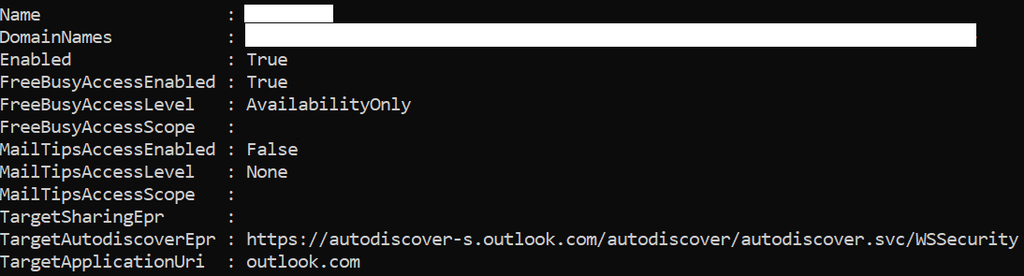
What you are looking for:
- FreeBusyAccessLevel:
AvailabilityOnlyorLimitedDetails - MailTipsAccessLevel:
LimitedorAll - FreeBusyAccessScope / MailTipsAccessScope: a group that limits the shared users. You will need that group again later.
- TargetSharingEpr / TargetAutodiscoverEpr / TargetApplicationUri: if these contain
outlook.com,office365.comoroffice365.usthe partner is hosted in Microsoft 365. Everything else could be an on-premises Exchange and is not covered by the new policy.
- If you use the same Organization Relationship for something else, e.g. cross-tenant mailbox migration, you have to move that configuration to a separate Organization Relationship first.
Next, check the Availability Address Spaces and the Sharing Policies, including which mailboxes are using them.
Get-AvailabilityAddressSpace | Format-List ForestName, AccessMethod, TargetAutodiscoverEpr, TargetServiceEpr, TargetTenantId

Get-SharingPolicy | Format-List Name, Enabled, Domains, Default

Get-EXOMailbox -ResultSize Unlimited -RecipientTypeDetails UserMailbox,SharedMailbox -Properties SharingPolicy | Group-Object SharingPolicy | Select-Object Name, Count
Output is:

The Domains property contains entries like *:CalendarSharingFreeBusySimple or Anonymous:CalendarSharingFreeBusyReviewer. A * applies to all external organizations, Anonymous controls the calendar publishing via URL. Write down what you find. Per partner tenant, we need the tenant ID, the access level for free/busy and MailTips and the sharing policy entries.
Step 2: Enable the Microsoft 365 collaboration trust
As the Microsoft 365 Cross-Tenant Access Policy builds on the Entra one, we first need a partner configuration in Entra ID with the Microsoft 365 collaboration trust level. Do this once per partner tenant. Note that it is identified by the tenant ID, not by domain names. All domains of the partner are (thankfully) included automatically.
Connect-MgGraph -Scopes "Policy.Read.All,Policy.ReadWrite.CrossTenantAccess,Policy.ReadWrite.CrossTenantCapability" -ContextScope Process

$partnerId = "9eacb92b-xxxx-xxxx-xxxx-00e3c999471d"

$body = @{
  tenantId = $partnerId
  m365CollaborationInbound = @{
    users = @{
      accessType = "allowed"
      targets = @(
        @{ target = "AllUsers"; targetType = "user" }
      )
    }
  }
}

New-MgPolicyCrossTenantAccessPolicyPartner -BodyParameter $body
The output looks like this then:

If you already have a partner configuration for that tenant in Entra ID (e.g. for B2B collaboration), the command fails with “Another object with the same value for property “$tenantId” already exists”. In that case don’t create a new partner, update the existing one instead.
Step 3: Create the capabilities
Now it gets interesting. The actual permissions are called capabilities and they are attached to the partner policy. Here is the mapping from the old to the new, and they are case-sensitive. The API returns the names in camelCase, so the tables use the names as Microsoft documents them.
Free/Busy
| Capability | Effective access | Replaces |
|---|---|---|
crossTenantCalendarAvailabilityBasic | Free/Busy, time only | FreeBusyAccessLevel: AvailabilityOnly or Availability Address Space |
crossTenantCalendarAvailabilityLimitedDetails | Free/Busy with time, subject and location | FreeBusyAccessLevel: LimitedDetails |
MailTips
| Capability | Effective access | Replaces |
|---|---|---|
crossTenantMailTipsLimited | Restricted subset of recipient information | MailTipsAccessLevel: Limited |
crossTenantMailTipsAll | Out-of-office, automatic replies and all recipient-specific info | MailTipsAccessLevel: All |
Calendar Sharing
| Capability | Effective access | Replaces |
|---|---|---|
CrossTenantCalendarSharingFreeBusySimple | Time only | CalendarSharingFreeBusySimple |
CrossTenantCalendarSharingFreeBusyDetail | Time, subject, location | CalendarSharingFreeBusyDetail |
CrossTenantCalendarSharingFreeBusyReviewer | Full details | CalendarSharingFreeBusyReviewer |
Free/Busy and MailTips
Both work the same way, only the capability differs. I want the partner to see free/busy with subject and location, so I choose crossTenantCalendarAvailabilityLimitedDetails. If you had a scope group in your Organization Relationship, use its object ID as the resource scope. Otherwise everyone is included. At the moment Microsoft is still lacking the New-MgPolicyCrossTenantAccessPolicyPartnerM365Capability cmdlet, as it is not yet available, so we need to send the payload using Invoke-MgGraphRequest.
$partnerId = "9eacb92b-xxxx-xxxx-xxxx-00e3c999471d"
$uri = "https://graph.microsoft.com/v1.0/policies/crossTenantAccessPolicy/partners/$partnerId/m365Capabilities"

$capability = "crossTenantCalendarAvailabilityLimitedDetails"   # or crossTenantMailTipsAll / crossTenantMailTipsLimited

$body = @{
  "@odata.type" = "#microsoft.graph.$capability"
  inboundAccess = @{
    isAllowed = $true
    resourceScopes = @{
      included = @(@{ resourceId = "All"; resourceType = "user" })
      excluded = @()
    }
  }
}

Invoke-MgGraphRequest -Method POST -Uri $uri -ContentType "application/json" -Body ($body | ConvertTo-Json -Depth 10)
The output looks like this then:

Repeat the same with $capability = "crossTenantMailTipsAll" (or crossTenantMailTipsLimited) for the MailTips.
Calendar Sharing
For Sharing Policies there are three flavors, because a Sharing Policy can contain a wildcard entry, an anonymous entry and entries for specific domains:
- Wildcard (
*) becomes a capability in the default Microsoft 365 Cross-Tenant Access Policy. - Anonymous becomes an
Anonymous…capability, also in the default policy. It is not possible to set an anonymous policy for a specific partner tenant. - Specific domains become capabilities in the partner policy of the tenant that belongs to that domain.
Check the Sharing Policy entries from Step 1 and identify the default policy.
Create the default-policy capabilities with the same payload structure. Check the existing ones first, because a POST for a capability that already exists returns a 409 Conflict. Trust me, I tried it. For the anonymous publishing, use one of AnonymousCalendarSharingFreeBusySimple, AnonymousCalendarSharingFreeBusyDetail or AnonymousCalendarSharingFreeBusyReviewer. The Calendar Sharing cmdlets are not in the SDK yet, so use Invoke-MgGraphRequest for these as well.
$uri = "https://graph.microsoft.com/v1.0/policies/crossTenantAccessPolicy/default/m365Capabilities"

(Invoke-MgGraphRequest -Method GET -Uri $uri).value | Select-Object name

foreach ($capability in @("crossTenantCalendarSharingFreeBusySimple", "anonymousCalendarSharingFreeBusyReviewer")) {
  $body = @{
    "@odata.type" = "#microsoft.graph.$capability"
    inboundAccess = @{
      isAllowed = $true
      resourceScopes = @{
        included = @(@{ resourceId = "All"; resourceType = "group" })
        excluded = @()
      }
    }
  }
  Invoke-MgGraphRequest -Method POST -Uri $uri -ContentType "application/json" -Body ($body | ConvertTo-Json -Depth 10)
}

(Invoke-MgGraphRequest -Method GET -Uri $uri).value | Select-Object name
The output looks like this:

Some points to keep in mind for the default policy:
- Keep the Sharing Policy enabled. Anonymous publishing stops when the policy is disabled, if the matching capability doesn’t exist yet.
- The anonymous capability is public.
Reviewershows full details to anyone who has the link. - Scope. The default capability applies to every external tenant and every mailbox. If your Sharing Policy was assigned to only some mailboxes, you have to build security groups to get comparable results.
If you have multiple Sharing Policies assigned to different mailboxes you can’t map them 1:1, because the new policy doesn’t work on policy assignments. You have to build security groups to get comparable results.
Step 4: Disable the old stuff and test
Here comes the part that is easy to overlook. Organization Relationships and Availability Address Spaces take precedence over the new policy. So as long as your Organization Relationship is enabled, you are testing nothing but the old EWS way. To test the new Free/Busy and MailTips policy, disable the Organization Relationship in both tenants, ideally at the same time. So talk to your partner admin first.
Calendar Sharing works differently. The new policy takes precedence over Sharing Policies, so you can test calendar sharing while the Sharing Policy stays enabled. Keep it enabled until the partner test has passed.
# Organization Relationship
Set-OrganizationRelationship -Identity "Partner Org" -Enabled $False
Now create a meeting in Outlook and add a user from the partner tenant. The scheduling assistant should show the availability of that user. If something doesn’t work, you can roll back by enabling the old configuration again.
Set-OrganizationRelationship -Identity "Partner Org" -Enabled $TrueStep 5: Clean up the old configurations
Once the partner test has passed, remove the old configurations. Sharing Policies that still serve hybrid or on-premises partners, or anonymous publishing you haven’t moved yet, must stay enabled.
Remove-OrganizationRelationship -Identity "Partner Org"

Set-SharingPolicy -Identity "Default Sharing Policy" -Enabled $False
Conclusion
The migration is not rocket science, but it is a tenant pair project and not just an Exchange setting anymore. You need an inventory, the tenant ID of every partner and an admin on the other side who is willing to switch at the same time as you. I hope this summary saves you some time, as it did save me some, now that the clock for EWS is running and in some tenants time is already out.